YOUR MAC. A LITTLE CLOSER.
Your Mac.
Within reach.
Check in. Open your files.
Bring your Mac to your iPad.
Available on the App Store · Mac · iPhone & iPad
NEW IN 1.6 / SHARP COLOR TEXT
Crisp, even in color.
Smooth in motion.
Keep colored text in code and charts crisp. Up to 120 fps, HDR, and hardware encoding and decoding bring your Mac’s screen to iPhone and iPad.
Up to 120 fps
Smooth motion at up to 120 fps on iPhone and iPad with a 120Hz ProMotion display.
HDR · HEVC 10-bit
Bright highlights on supported Mac displays and devices. Connects at up to 60 fps.
Sharp Color Text · Beta
New in 1.6. Less color bleeding on colored text and thin colored lines in code, charts and other colorful screens.
Hardware encode and decode
Your Mac compresses with its hardware encoder; iPhone and iPad decode HEVC in hardware.
Display specs
- Video
- HEVC (H.265) and H.264 · 4:2:0 by default · optional 4:4:4 (Beta) · HEVC 10-bit for HDR
- Processing
- Mac hardware encoding · iPhone and iPad HEVC hardware decoding · 4:4:4 restored on device with Metal
- Frame rate
- Automatic up to 60 fps · fixed 30 or 60 fps · up to 120 fps on 120Hz devices
- Resolution
- Automatic · Standard · Sharp · Native · iPad-shaped workspace · 1× or 2× HiDPI
- Routes
- Checks wired (USB or LAN), Wi-Fi, then outside routes (Tailscale) · route, frame rate and latency in connection info
- Audio
- Mac system audio playback
Up to 120 fps needs a device with a 120Hz display. HDR works on supported Mac displays and devices at up to 60 fps, and the two cannot be used together. 4:4:4 Sharp Color Text (Beta) needs version 1.6 or later of both the Mac and iPhone or iPad apps, works in landscape at up to 60 fps and cannot be used with HDR or 120Hz. Actual frame rate, latency and image quality depend on your Mac, device and network.
NEW IN 1.5 / IPHONE DUO
Unfold your workspace.
Fold it into a laptop.
A new way to use Link on iPhone Duo. The fold gives your Mac screen and controls their own space.
Open it. See more.
Your Mac connection, status and shared folders sit on either side of the fold. The same balanced home works fully open or partly folded.
Mac above. Keyboard below.
Half fold your Duo into a laptop pose. The Mac screen fills the upper half, with the on-screen keyboard and shortcuts below. Enabled by default; adjustable in settings.
Speak. Review. Send.
Tap the microphone, speak, then review the text before sending it to your Mac. Voice input is also available on iPhone and iPad.
Shown with Duo Simulator app screens. The remote desktop in the video is composited from a Mac capture. Voice input requires microphone and speech recognition permission.
ONE APP. THREE CONNECTIONS.
More than a screen.
A link to your Mac.
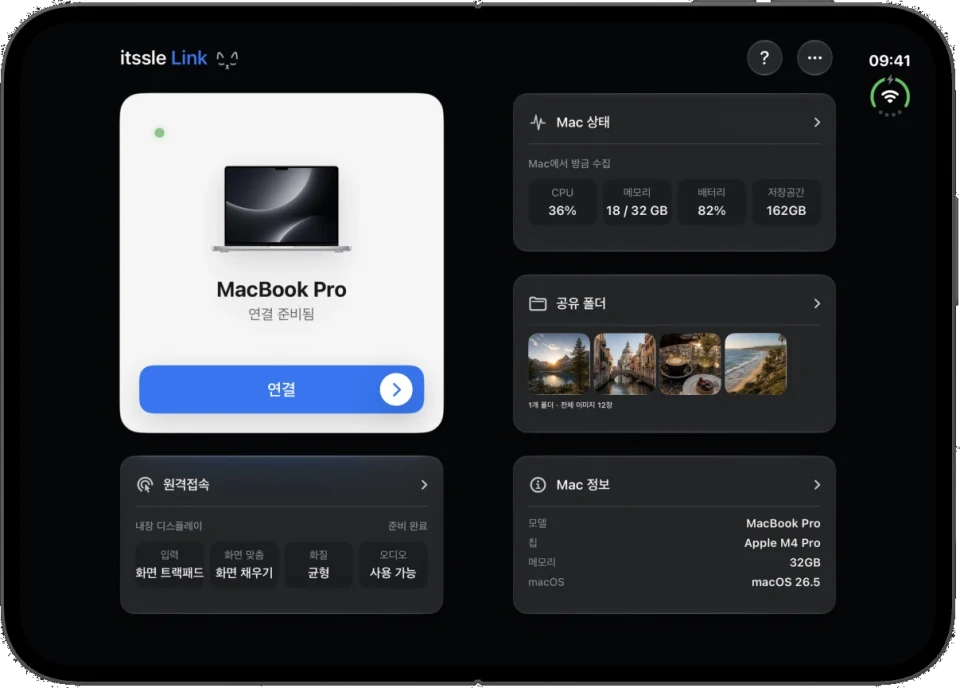
Check your Mac and browse shared files without starting a remote screen session. When it’s time to get hands-on, step into remote control.
Before you open your Mac,
check in on it.
CPU, memory, battery and storage. See your Mac’s status and device information from your iPhone or iPad.
CPU, memory usage and Mac information · Battery, storage and connection readiness
Photos worth a closer look.
Documents within reach.
Browse folders shared from your Mac. Enjoy photos and read documents on iPad, then save or export a copy when you need one.
Folder browsing, search and photo/document filters · Photo zoom, paging and full-screen document reading
Back to your Mac.
From your iPad.
Work with your Mac’s screen and sound. Choose the display fit, quality and input style that suit your device and the task at hand.
Korean and English input with language switching · iPad-shaped workspace and high-quality options
Actual app screens from the current development build. Details can vary by device and connection.
MADE FOR YOUR HANDS.
Feels like iPad.
Works like Mac.
Remote work should feel familiar. From the way you see the screen to the way you type, tap and move.
01Korean. English. Both.
Switch input languages and keep typing, with keyboard tools that keep your work moving.
02A workspace that fits.
Match your workspace to your iPad’s aspect ratio and resolution. Return to your Mac’s original display setup when the session ends.
03A closer look.
From small text to photo details. Choose quality and resolution to suit your work and connection.
04Your kind of touch.
Direct touch, a screen trackpad or view mode. Choose how you scroll, drag and navigate.
Mac audio playback · Explicit text paste from iPhone or iPad
Available resolution and quality depend on your Mac, mobile device and connection.
YOUR DEVICES. YOUR CHOICE.
Your devices.
Your permission.
Choose which devices can connect and what they can access, right on your Mac. Start with an approved connection and no separate itssle account.
- 01
Get both devices ready.
Install itssle Link on your Mac and your iPhone or iPad.
- 02
Pair and approve.
Pair your devices, then approve the features and folders they can access.
- 03
Make the connection yours.
Check status, read shared files and start working remotely.
Your Mac must be awake and reachable. Use the same network or a Tailscale route you configure.
Which devices does Link connect?
Your Mac is the host, and your iPhone or iPad is the client. Both need itssle Link. Download the app for each device on the App Store. Check the App Store compatibility section for OS requirements.
Can I browse every file on my Mac?
Only the shared folders you select on your Mac and approve for that device. You can read supported photos and documents and save copies. Shared-folder browsing does not edit or delete the originals on your Mac.
Do both devices need the same Wi-Fi?
Use the same network or a Tailscale route you configure. Your Mac must be awake and reachable over that route. Link does not promise automatic internet relay or connectivity on every external network.
Which permissions does remote control need?
Screen Recording on Mac is needed to view its display. Accessibility is needed for keyboard and pointer control. Manage paired devices and their feature permissions on your Mac.
What about language switching and iPad resolution?
Yes. Link supports Korean and English input, Mac input source switching and a workspace matched to your iPad’s aspect ratio and resolution. You can also choose resolution, frame rate, quality and several touch modes. Actual display quality depends on your Mac, device and connection.
What is 4:4:4 Sharp Color Text (Beta)?
Remote screens usually travel as 4:2:0, which reduces color detail to save data. 4:4:4 keeps full color detail, so colored text and thin colored lines in code and charts stay crisp. Turn it on in Remote Access → Display Settings. Both the Mac and iPhone or iPad apps need version 1.6 or later. It works in landscape at up to 60 fps, cannot be used with HDR or 120Hz, and Link connects in 4:2:0 when those conditions are not met.
Can I download it now?
Yes. Use the App Store download button on this page. Install itssle Link on both your Mac and the iPhone or iPad you want to connect.
Available on the App Store
A little closer.
A new connection between your Mac, iPhone and iPad.
Download on the App Store