Mac · iPhone · iPad

itssle Cast

Your screen. Set free.

The picture you love. The sound you live in.
Bring them to your TV and speakers.

Explore the bigger picture

Preparing for launch · Mac first

Scroll to discover

For Google Cast TVs & speakers

See the difference

A bigger picture.
A deeper feeling.

The everyday looks different when you share it.
Open up the view and see for yourself.

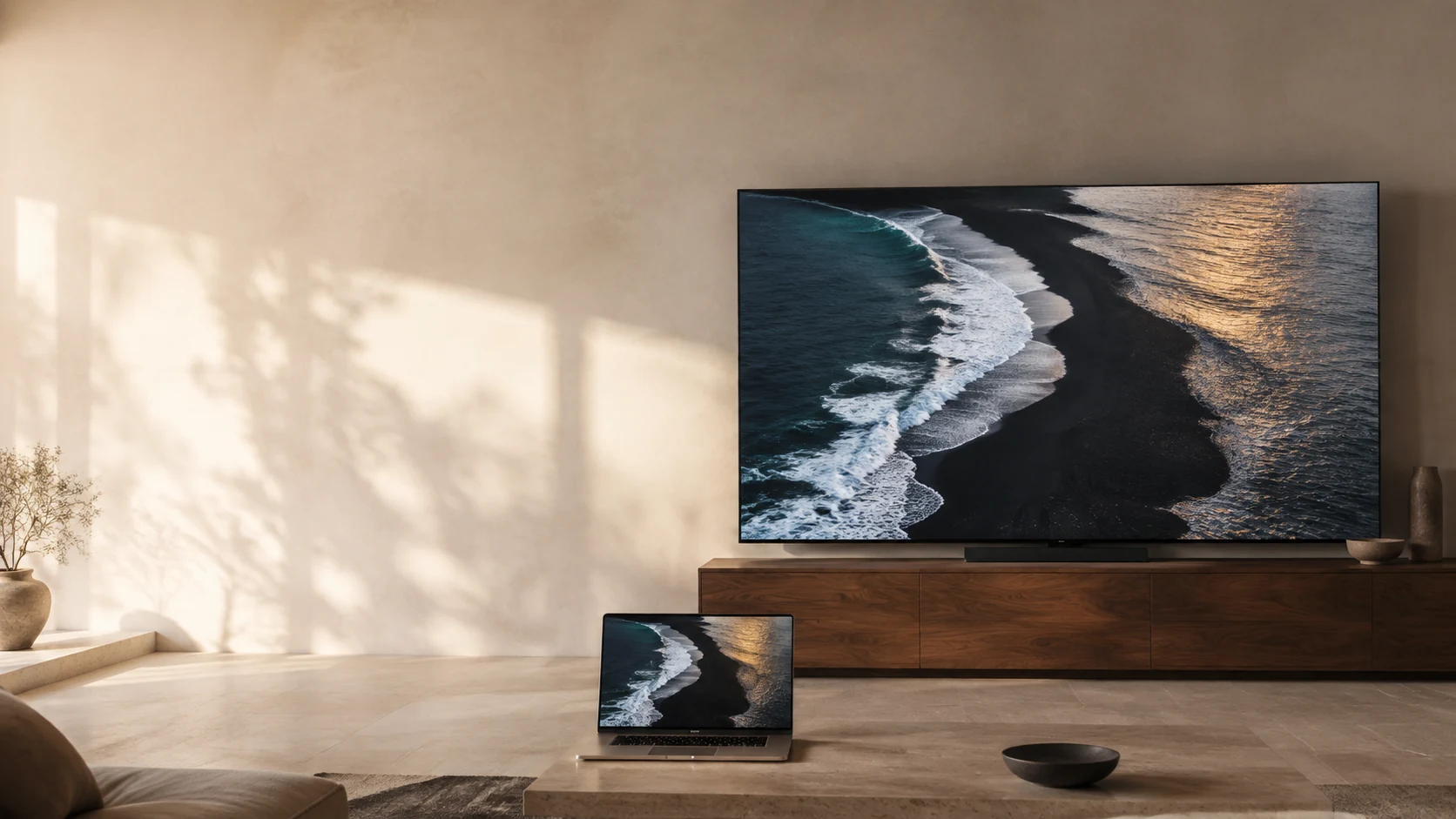
Preview · Ocean

View larger
Ocean

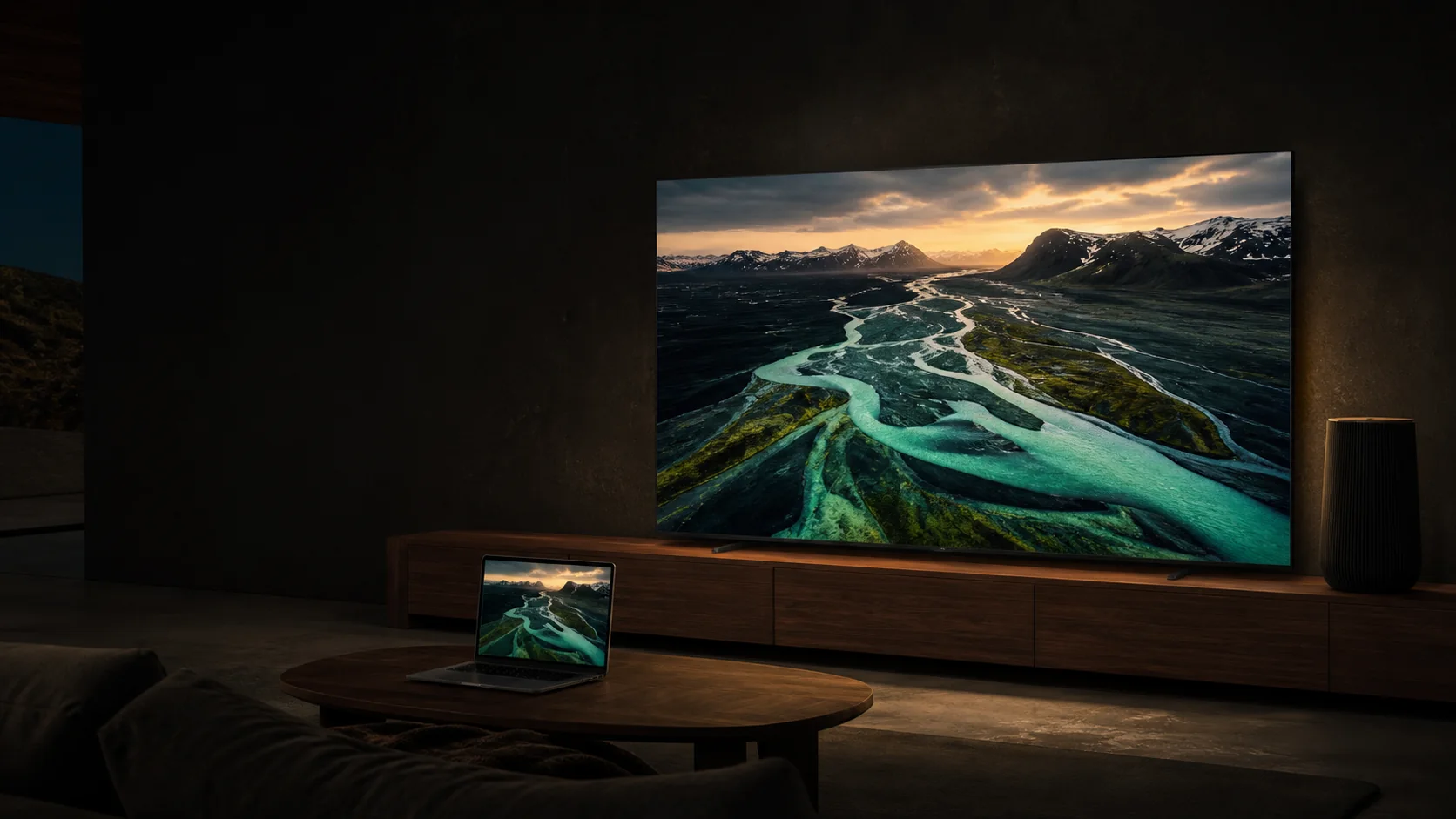
An image preview to compare screen sizes. Actual casting quality and aspect ratio depend on your devices.

Picture and sound to your TV.
Just sound to your speakers.

Connect to a Google Cast-enabled device.
Watch together. Or simply listen.

Start with what you have

Less setting up.
More settling in.

Choose your device to see how it connects.

Mac

macOS 14 or later

Open your laptop.
Open up the view.

Choose a display and whether to include system audio. Connect to your TV directly from the Mac app.

  1. Connect your Mac and TV to the same Wi-Fi.
  2. Choose a display and system audio.
  3. Select your TV and start casting.

Mac version launching first

iPhone

iOS 17.4 or later

In your hands.
For everyone to see.

Bring your iPhone screen and app audio to a TV. Choose a Cast speaker to send just the sound.

  1. Connect your iPhone and TV or speaker to the same Wi-Fi.
  2. Choose a TV or speaker in the app.
  3. Start the system screen broadcast yourself.

Up to 1080p 30fps sender setting · Mobile in preparation

iPad

iPadOS 17.4 or later

A little more room.
For what’s on your iPad.

Share the screen and app audio you want everyone to enjoy. Begin the connection right from your iPad.

  1. Connect your iPad and TV or speaker to the same Wi-Fi.
  2. Choose the receiving device in the app.
  3. Start the system screen broadcast yourself.

Up to 1080p 30fps sender setting · Mobile in preparation

Your picture. Your preference.

Good moments.
Thoughtful controls.

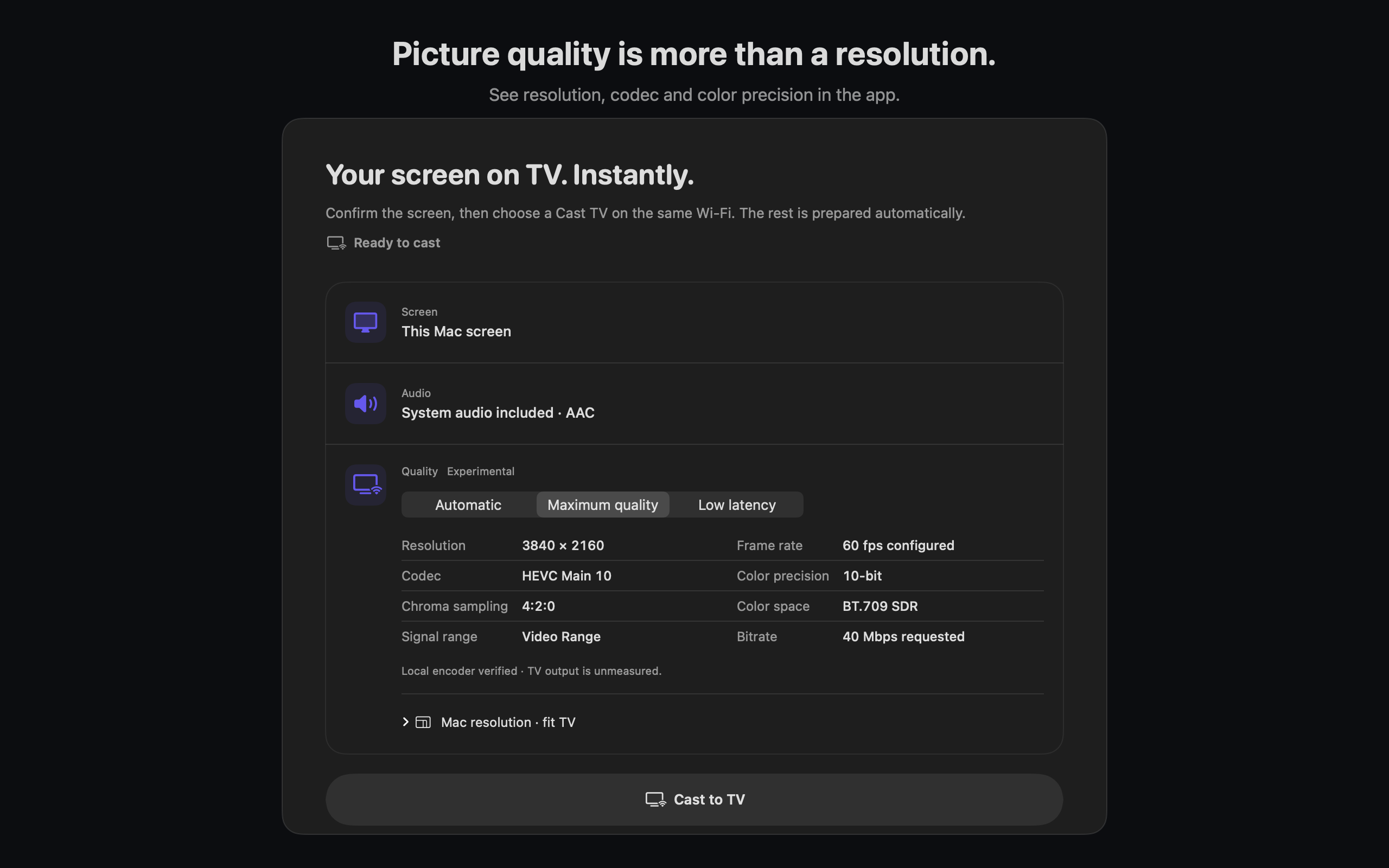
Choose Automatic, Maximum quality or Low latency on your Mac. Find the balance that suits what you’re sharing.

Automatic
Let the app find the balance
Maximum quality
When detail comes first
Low latency
When responsiveness matters

Maximum quality is an experimental request for 4K60 and HEVC Main 10. Actual results depend on your TV and network.

Actual itssle Cast Mac development interface showing resolution, codec, color precision and bitrateExplore the actual interface
Actual Mac development interface

Your screen stays close

From your device.
Into your space.

Your screen and audio travel directly to your TV or speaker over the local network. They are not uploaded to or relayed through SnapWorks Lab servers.

Your devices need to be able to communicate on the same Wi-Fi.

Read the privacy policy

Before you connect

A little clarity.
Before the big picture.

Need a hand?
Which TVs and speakers work?

You need a Google Cast-enabled TV, a connected Chromecast or Cast receiver, or a Cast-enabled speaker. Not every smart TV supports Google Cast. Your device and TV or speaker must be able to communicate on the same Wi-Fi.

Does it work on Mac, iPhone and iPad?

Apps for all three devices are in preparation. Mac targets macOS 14 or later; iPhone and iPad target iOS and iPadOS 17.4 or later. Mac will launch first, with mobile to follow when ready. Downloads are not yet available. Pricing and dates will be announced later.

How does picture quality differ by device?

Mac offers Automatic, Maximum quality and Low latency options. Experimental Maximum quality requests 4K60 and HEVC Main 10, subject to your TV’s codec support and network. iPhone and iPad use sender settings up to 1080p 30fps, adjusted for device temperature. 10-bit does not mean HDR. The current color space is BT.709 SDR with 4:2:0 chroma sampling.

Can I watch films and streaming apps?

You can share content that permits screen capture. DRM-protected video may appear black or its audio may not be shared. The app does not remove these restrictions. Casting adds latency, so it may not suit games that need fast reactions.

Will it work in a hotel or with a VPN?

It can connect when the network allows local devices to communicate. Hotel and guest Wi-Fi isolation can prevent TV discovery. If you use a VPN, check its local network access settings. The app does not provide a VPN or video content.

How do I start and stop a broadcast?

On iPhone and iPad, choose a device in the app, then start the system screen broadcast yourself. If the system broadcast indicator remains after stopping in the app, end the broadcast in the system picker too. A broadcast may include notifications and other app screens. The microphone is off by default.
The next scene is coming

See you on
the big screen.

Starting with Mac. Then iPhone and iPad.
itssle Cast is getting ready for you.

Ask about the launch

Mac planned first · Mobile in preparation
Downloads and pricing will follow when confirmed.

View image